Connecting your store
Before MageDrop can stage and deploy changes, you connect your Magento 2 store. The setup wizard in the dashboard walks you through each step; this page explains what each one does.
Step 1: Add your store
- Sign in to your MageDrop dashboard.
- Go to Stores and click Connect a store.
- Enter your store's details:
- Store name: a friendly label, such as "UK storefront" or "Staging".
- Magento base URL: the storefront address including the protocol, such as
https://www.example.com, with no trailing slash.
- Click Continue to open the setup wizard.
Step 2: Create a Magento integration
MageDrop talks to Magento through an integration you create in the admin. It gives MageDrop permission to read and update your content through the MageDrop module.
- In the Magento admin, go to SystemIntegrationsAdd New Integration.
- On the Integration Info tab, set the name to
MageDrop. - On the API tab, set Resource Access to Custom and tick the resources below.
| Resource | Why it's needed |
|---|---|
| MageDrop (Releases, Configuration, API) | Deploy, roll back and restore CMS and catalog content through the module. It appears once the module is installed: if you create the integration first, come back and tick it afterwards. |
| StoresSettingsAll Stores | Lets MageDrop list your store views. Optional, as the module reports them too. |
| ContentElementsPages and Blocks | Only needed on stores still running module 1.x, which deploy CMS content through Magento's core REST API. |
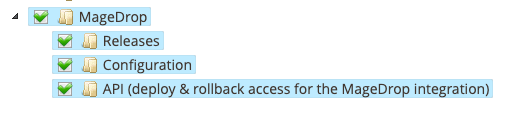
The dashboard checks the MageDrop > API permission every few minutes and shows a warning with instructions if it is missing.
- Click Save, then Activate on the integration row, and Allow in the confirmation dialog.
- A popup shows four tokens. Copy each one into the matching field in the setup wizard:
- Consumer Key
- Consumer Secret
- Access Token
- Access Token Secret
- Click Test and save. MageDrop tests the connection before saving anything, and stores the tokens encrypted.
Lost the tokens? In Magento, go to SystemIntegrations, edit the integration, save it and click Reauthorize to generate new ones. Then paste all four into the wizard again.
Step 3: Configure the Magento module
Once the tokens are saved, the wizard shows your module token. Install the module if you haven't yet, then:
- In the Magento admin, go to StoresConfigurationMageDropConnection and open API Connection.
- Set Enabled to
Yes. Leave API URL Override empty. - Paste the token into Module Token.
- Click Save Config.
The module token authenticates the module, so only your Magento instance can send data to your MageDrop account. Treat it like a password.
Verifying the connection
Click Test module connection in the wizard. Later, the Connection card on the store page has a Test button for both the Magento API and the module. MageDrop also checks both every five minutes and warns you on the store page if something stops working.
If a test fails, see Troubleshooting for common causes.
Development environments
If you're connecting a local development store, MageDrop can't reach it directly. Use a tunnelling tool like ngrok to expose your local Magento instance:
ngrok http 443 --host-header=rewriteThen use the ngrok HTTPS URL (for example https://abc123.ngrok.io) as the store's Magento base URL in the dashboard.